
Windows 11 Support: Seamless Assistance for Modern Workflows
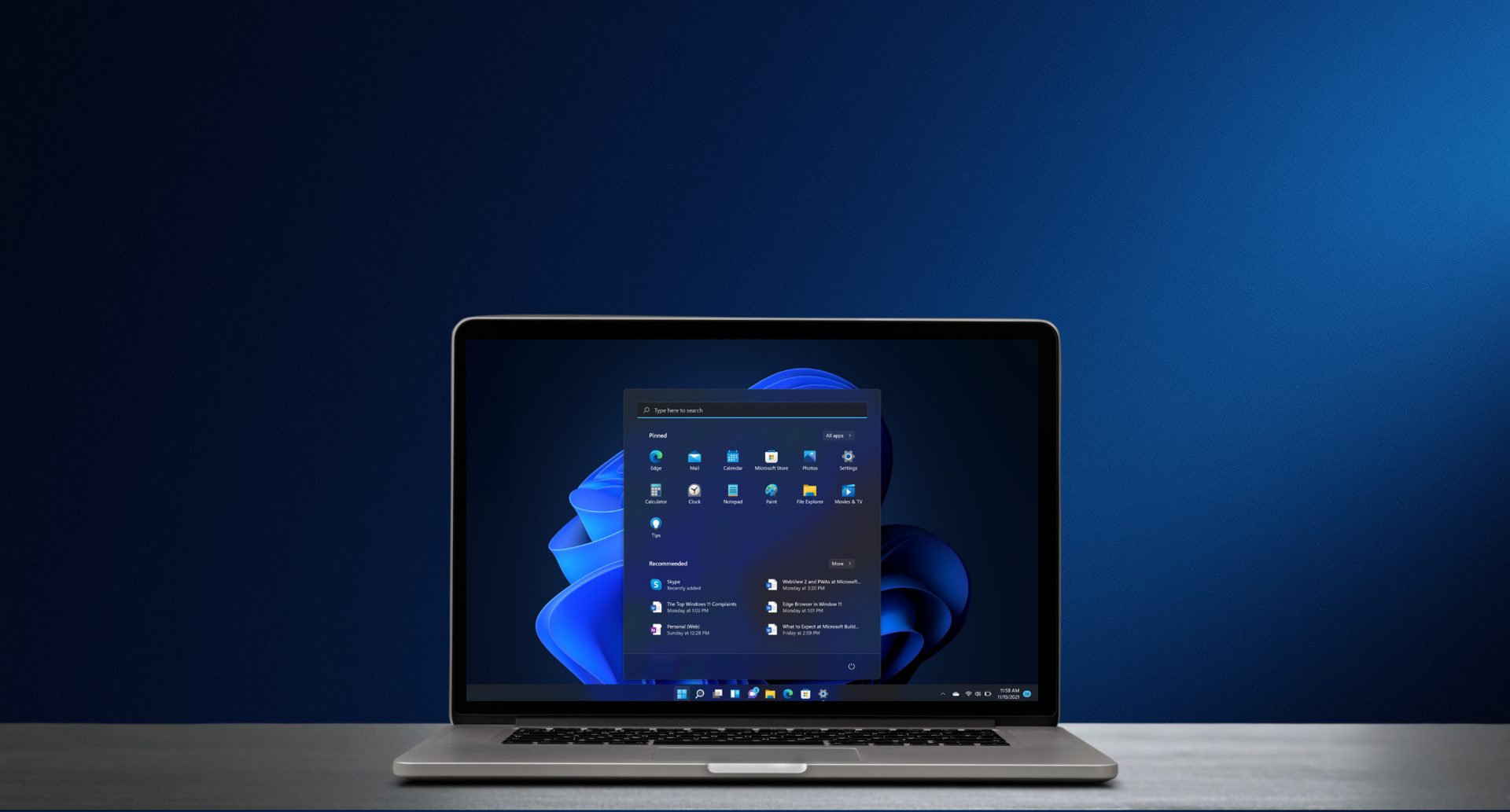
Simplifying Windows 11 Assistance Windows 11 support covers everything from updates that protect your system to tools that help you solve common problems. Don’t let technology troubles slow you down. contact us today and discover how easy Windows 11 support and upgrades can be with the right help.
A slow or unresponsive computer can quickly ruin your day, whether it’s for work, school, or personal use. Windows 11 is designed to offer a smooth, secure, and stress-free experience, but like any operating system, it can sometimes run into issues. Whether updates fail, your internet connection drops, or the system slows down, Windows 11 comes equipped with built-in tools to help you quickly diagnose and resolve problems. This guide covers everything you need to know about Windows 11 support in 2025, including how to keep your PC secure, efficient, and ready for the future. Windows 11 support features aren’t just about fixing problems after they happen; they’re designed to help prevent them altogether. By proactively managing system health, Windows 11 keeps your PC running smoothly, reduces downtime, and enhances security. Whether you’re a casual user or managing multiple devices in a business, understanding and utilising these support tools is key to protecting your investment and productivity.
The Support Assistant: Your PC’s Silent Helper
Windows 11’s Support Assistant quietly monitors your system in the background, scanning for potential issues before they escalate. It can identify outdated drivers, conflicting software, or system errors and suggest simple fixes. The main thing about this feature is that anyone can use it efficiently without having proper IT knowledge. The Support Assistant makes PC maintenance accessible for everyone, offering peace of mind without requiring manual checks or complicated diagnostics.
Troubleshooting Made Simple
Windows 11 includes helpful troubleshooters designed to tackle common problems with minimal user effort. Whether your sound suddenly stops working, your Wi-Fi keeps disconnecting, or a printer won’t connect, these tools guide you through easy steps to fix the issue. This hands-on approach empowers users to solve problems quickly without needing to call for professional help every time something goes wrong.
Keeping Windows 11 Up to Date: A Crucial Step
Regular updates are a must when it comes to the security of your device. Windows 11 automatically downloads and installs updates that include security patches, bug fixes, performance improvements, and hardware driver updates. These updates not only protect against emerging cyber threats but also help improve overall system stability and introduce new features that enhance user experience. For example, a recent update might improve battery life on laptops or add new customisation options. Failing to install updates can leave your PC vulnerable to attacks or cause software to malfunction, so it’s crucial to allow these updates to run regularly and restart your PC when prompted.
Built-In Security: Defending Your PC and Data
Windows 11 comes equipped with strong security measures to guard against viruses, malware, and various online threats. Windows Defender Antivirus runs quietly in the background to detect and neutralise threats before they can harm your system. Alongside this, the built-in firewall safeguards your network connection, blocking unauthorised access.
Security doesn’t stop there. Features like BitLocker encryption protect your sensitive files by encoding data on your hard drive, making it inaccessible to anyone without the proper credentials. Plus, Windows Hello allows you to sign in using facial recognition or fingerprints, offering both convenience and enhanced security over traditional passwords.
These integrated protections ensure you can browse, work, and shop online safely.
When Things Go Wrong: Recovery Tools You Can Trust
Sometimes, despite your best efforts, things go wrong. Whether a recent update caused problems, a virus infected your PC, or system files became corrupted, Windows 11 offers recovery options to get you back on track.
System Restore lets you revert your PC’s state to an earlier point in time, undoing recent changes that might have caused issues without affecting your personal files.
Reset This PC reinstalls Windows 11 while allowing you to keep your personal documents or alternatively removes everything for a completely fresh start.
Advanced Startup provides access to repair tools that can fix startup issues, recover system images, or restore factory settings.
These tools give users confidence that, even when serious problems occur, their data is safe, and recovery is within reach.
Why Upgrading to Windows 11 Matters
If you’re still running Windows 10 or an older version, now is the time to consider upgrading. Windows 11 brings improved security features, faster performance, and a more modern interface that enhances productivity and ease of use. We all know that Microsoft support will end for Windows 10 in October 2025. After that, no more security updates or technical support will be provided, leaving systems vulnerable to attacks and bugs. Upgrading to Windows 11 ensures your PC benefits from ongoing security patches, compatibility with new software, and improved hardware support. This not only protects your data but also helps future-proof your setup.
How Our Expert Team Can Make Your Windows 11 Upgrade Easy
Upgrading an operating system can seem daunting, especially for users without much technical knowledge. That’s where our IT experts come in. We guide you through every step, from checking whether your PC is compatible to backing up your data and installing Windows 11. We also handle troubleshooting any issues that arise during the upgrade, ensuring minimal disruption to your work or daily routine. After installation, we optimise your settings, install necessary software, and provide training or support so you can confidently use your upgraded system. This professional assistance removes the stress and guesswork, allowing you to enjoy the benefits of Windows 11 without hassle.
Best Habits to Keep Your Windows 11 PC Running Smoothly
Regular upkeep of your Windows 11 system helps avoid frequent technical issues and ensures smoother performance. Here are some practical tips:
Install updates promptly: Don’t delay restarting your PC after updates install.
Run security scans: Use Windows Defender or a trusted antivirus program to scan for malware.
Clean up storage: Regularly remove unnecessary files using built-in tools like Disc Cleanup or Storage Sense.
Manage startup programmes: Disable apps that slow down your PC’s startup to improve boot times.
Backup your data: Use cloud services or external drives to protect against data loss.
Following these simple practices helps maintain peak performance and extends the life of your PC.
Windows 11 Compatibility and Hardware Requirements
Before upgrading to Windows 11, it’s important to ensure your PC is compatible with the new operating system. Windows 11 requires more modern hardware than previous versions, so older devices may not support all features or may not be eligible for the upgrade. Generally, Windows 11 runs best on relatively recent computers that have a capable processor, sufficient memory, and enough storage space. Additionally, security features built into the hardware, such as advanced firmware and encryption support, play a key role in meeting Windows 11’s requirements.
If your PC is a few years old, it’s a good idea to check its compatibility before upgrading. Many devices sold in recent years will meet the requirements, but some older or budget models may need hardware upgrades or replacement to run Windows 11 smoothly. Our IT experts can help you assess your computer’s readiness and recommend any necessary upgrades so you can enjoy all the benefits Windows 11 has to offer.
Looking Ahead: Windows 11’s Evolving Support Ecosystem
Windows 11 is designed to evolve with users’ needs. Microsoft continuously improves the operating system with updates that enhance security, add new features, and improve usability. As cyber threats grow more sophisticated, Windows 11’s built-in tools will continue adapting to protect your system proactively. By staying informed and maintaining your PC regularly, you can ensure your Windows 11 experience remains safe, efficient, and enjoyable for years to come.
Get Expert Windows 11 Support Today
Whether you’re ready to upgrade, need help troubleshooting, or want advice on protecting your PC, our experienced IT support team is here to assist. We provide tailored solutions that keep your computer secure, up-to-date, and running smoothly. Contact Voktis for Windows 11 upgrade support.
